Ships constantly broadcast their name, position and speed over radio. The dAISy Mini is a small receiver that lets you catch those signals with a Raspberry Pi and see the vessels around you in your terminal.
This tutorial covers the full setup: connecting the board, building a free wire antenna, and decoding ships in Python. Mine worked within minutes, and every mistake I made is included so you can skip it.
What is AIS
Every commercial ship in the world constantly broadcasts its position, speed, course, name and destination over VHF radio. This is called AIS, the Automatic Identification System. It exists so ships can see each other and avoid collisions. The transmissions are not encrypted, so anyone with a receiver tuned to 162 MHz can listen in. Websites like MarineTraffic are built on thousands of people doing exactly this and uploading what they hear.
What you need
- A Raspberry Pi. I used a Pi 4B but basically any of them works.
- A dAISy Mini AIS receiver from Wegmatt. I have the version with a USB C adapter, which I strongly recommend because it makes the whole setup plug and play.
- About one meter of ordinary insulated wire for the antenna.
Step 1: Plug it in and find it

The dAISy Mini with USB C adapter
Connect the dAISy to the Pi over USB. Then SSH into your Pi and check that Linux sees it:
lsusb
You should see something like a CH340 serial converter in the list. That is the USB chip on the adapter. Now find which port it got:
ls /dev/ttyUSB* /dev/ttyACM*
Mine showed up as /dev/ttyUSB0. Yours almost certainly will too.
One thing that will save you a headache: add yourself to the dialout group, otherwise Linux will not let you open the port.
sudo usermod -aG dialout yourusername
Then log out and SSH back in. This part is important. The group change does nothing until you start a fresh session. I lost twenty minutes to this.
Step 2: Talk to the receiver
Install a serial terminal and connect:
sudo apt install screen
screen /dev/ttyUSB0 38400
The dAISy always talks at 38400 baud, so that number is not optional. If the screen stays blank, do not panic. Blank is normal when no ships are transmitting nearby. To prove the board is alive, press the Escape key. A configuration menu should appear with the firmware version and the radio frequencies. If you see that menu, everything works.
There is even a test mode. Press T in the menu and the receiver will output a fake ship message every five seconds, so you can test your whole setup without receiving anything real. Press Escape again to go back to listening.
Two warnings from my own suffering. First, do not press B. That launches the firmware bootloader and the terminal fills with strange characters. If you do press it, just unplug the receiver and plug it back in, nothing is harmed. Second, screen keeps running in the background if you close your SSH window without properly quitting it, and then the port stays busy and nothing else can open it. Quit screen properly with Ctrl+A then K then Y. If you ever get a device busy error later, run screen -ls to find zombie sessions and kill them.
Step 3: The antenna, or why my first hour showed nothing
Here is the thing nobody tells you clearly enough: the receiver does absolutely nothing without an antenna. I sat there waiting, staring at an empty terminal, before realizing the bare antenna connector picks up essentially zero signal. It is not weak reception. It is no reception.
The good news is that a perfectly usable AIS antenna is a piece of wire. AIS lives around 162 MHz, and a quarter wavelength at that frequency is about 44 centimeters. So:
- Cut a piece of insulated wire to roughly 44 or 45 cm. The exact length barely matters for receiving. Leave the insulation on, it does not block radio waves at all.
- Strip about 5 mm from one end and get that bare tip touching the center pin of the SMA connector on the dAISy. If you have an old SMA pigtail from WiFi gear, solder to that instead, it is much cleaner.
- For a real improvement, cut a second identical wire and connect it to the outer metal barrel of the connector. Now you have a dipole.
- Hang the whole thing vertically. First wire points up, second wire points down. Ship antennas are vertical, and matching that orientation genuinely matters.
- Put it at a window facing the water, as high as you can.
Vertical orientation, window placement, and height matter far more than getting the length perfect or the wire straight. Slightly bent is fine. Coiled up on the floor is not.
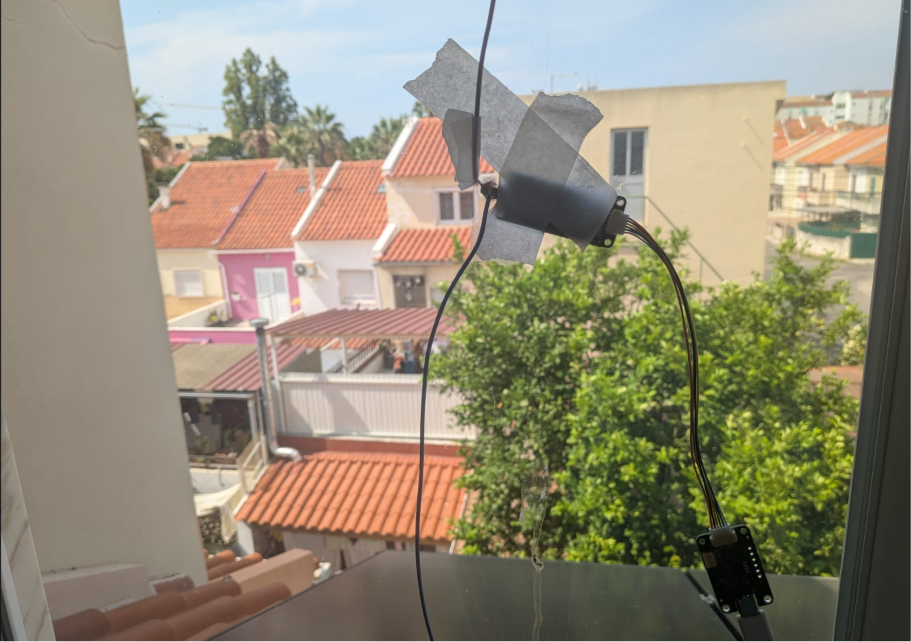
The homemade wire antenna at the window
Step 4: Watch the ships arrive
Go back into screen and wait. The receiver has two status LEDs. A short green blink every five seconds means it is listening. A quarter second green flash means it just caught a real ship, and at the same moment a line like this appears in your terminal:
!AIVDM,1,1,,A,13aEOK?P00PD2wVMdLDRhgvL289?,0*26

Raw AIS sentences arriving in the terminal
That gibberish is a ship. You will also see plenty of red flashes, which are corrupted packets from ships just out of range or radio noise. Lots of red is completely normal.
My first real messages arrived within a few minutes of hanging the wire. Through a concrete wall, from a kilometer away, with an antenna that cost nothing. Big commercial ships transmit at 12.5 watts, so at short range you have a huge margin even with a terrible setup.
Step 5: Make it human readable
Raw AIVDM sentences are not fun to read, but a small Python library called pyais decodes them. Install it:
pip3 install pyais pyserial --break-system-packages
Then save this as ships.py:
import serial
from pyais import decode
from datetime import datetime

port = serial.Serial("/dev/ttyUSB0", 38400, timeout=1)
buffer = []

print("Listening for AIS messages...")

while True:
    try:
        line = port.readline().decode("ascii", errors="ignore").strip()
        if not line.startswith("!AIVDM"):
            continue

        parts = line.split(",")
        total = int(parts[1])
        num = int(parts[2])

        if total == 1:
            d = decode(line)
        else:
            buffer.append(line)
            if num < total:
                continue
            d = decode(*buffer)
            buffer = []

        t = datetime.now().strftime("%H:%M:%S")
        name = (getattr(d, "shipname", "") or "").strip("@ ")
        dest = (getattr(d, "destination", "") or "").strip("@ ")
        lat = getattr(d, "lat", None)
        lon = getattr(d, "lon", None)
        speed = getattr(d, "speed", None)

        if name:
            print(f"[{t}] MMSI {d.mmsi}  NAME: {name}  dest: {dest}")
        elif lat is not None and lon is not None:
            print(f"[{t}] MMSI {d.mmsi}  pos: {lat:.5f}, {lon:.5f}  speed: {speed} kn")

    except KeyboardInterrupt:
        break
    except Exception:
        buffer = []
Quit screen first, because only one program can use the port at a time, then run it:
python3 ships.py
And suddenly the gibberish becomes this:
[14:37:58] MMSI 311048300  NAME: RCC PRESTIGE  dest: PTSET
[14:39:51] MMSI 263701940  pos: 38.50506, -8.88719  speed: 9.9 kn
[14:52:35] MMSI 255915666  NAME: PANDA 005  dest: NLMOE

Decoded ships with names, positions and speeds
Real ships, with names and destinations, live from your own receiver. The ones moving at ten knots in my case turned out to be the local ferries. The ones at zero knots are anchored, patiently waiting, reporting their position every three minutes like clockwork.
A note on what you will see: moving ships transmit every few seconds, so one ship produces many lines with slightly different speeds each time. That is not a bug, you are literally watching its speedometer. Ship names arrive in a separate message type that only repeats every six minutes, so names fill in gradually.
Do not expect to see everything
Compare your catch against MarineTraffic and you will see fewer ships than the website shows. That is expected. The websites aggregate data from elevated shore stations and satellites. You have a wire at a window. Big ships with tall antennas and strong transmitters come through easily. Small yachts transmitting at 2 watts from a low antenna may not reach you at all. Buildings and hills block VHF completely, it is strictly line of sight.
Still, catching the main traffic in your local waters with hardware this simple never stops feeling slightly magical.
Where to go from here
Once the decoded data is flowing, the fun starts. I ended up writing a small Flask server that keeps track of every ship and draws them on a live map with Leaflet, arrows rotated to their actual course, red for moving and blue for anchored. My own tiny MarineTraffic, running on a Raspberry Pi, fed by a wire taped to the window.
You could log everything to a database and study traffic patterns. You could set up alerts when a specific ship appears.
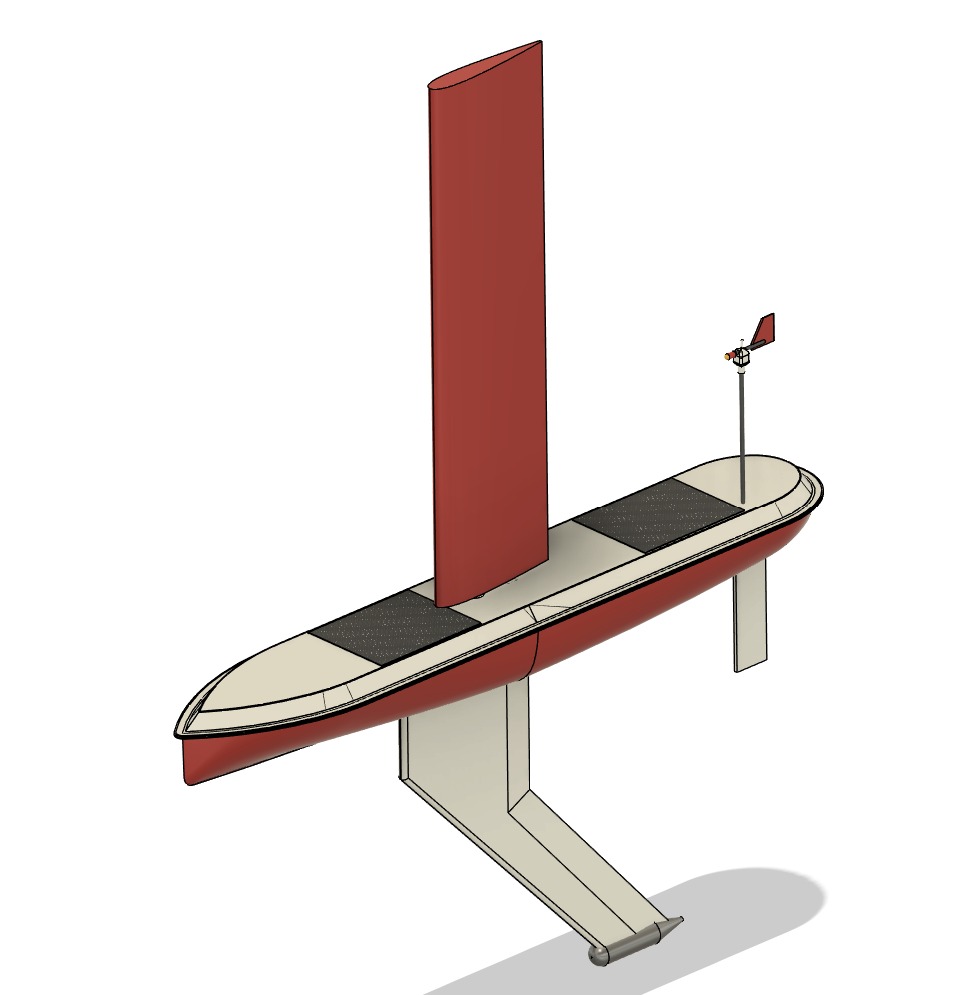
For me this is not just a hobby experiment. The whole setup is going onto SailOne, my autonomous sailboat project. The boat is a 2.5 meter unmanned sailing vessel I am building to cross the Atlantic with no crew on board, and the dAISy Mini is its eyes for navigation. Out at sea, the receiver will tell the autopilot where the big commercial ships are, how fast they are moving and in which direction, so the boat can adjust course and stay out of their way long before they get close. A cargo ship at twenty knots gives you around fifteen minutes of warning at typical detection range, which is plenty of time for a small sailboat to move aside. The window test you just read about was step one of building exactly that collision avoidance system. If you want to follow the project, it lives at sailone.org.
If you try this and get stuck, the dAISy manual is genuinely good, and the maker responds to emails. Total cost of the working setup: the receiver, a Pi you probably already own, and one piece of wire. Happy listening.
Thank You Wegmatt
A huge thank you to Wegmatt LLC for sponsoring SailOne with the dAISy Mini receiver used in this article. Their support gives our boat the ability to see and avoid ships at sea.
Get Involved
Whether you offer technical advice, sponsorship, or just want to ask a question, please don't hesitate to get in touch. Project updates are publicly available at sailone.org.